
🚀 Want to launch a profitable website fast?
This step-by-step guide will help you create a professional WordPress site in the shortest time possible — without wasting effort or making beginner mistakes.
✅ Built on real experience, this guide is designed to get you approved by Google AdSense quickly, so you can start generating daily income.
Follow every step carefully, and you’ll have a site ready for traffic, monetization, and growth.

 Step 1: Choosing Hosting
If you’re planning to create a profitable crypto faucet, everything starts with reliable hosting. I chose Hostinger.com — it’s the perfect option for both beginners and experienced developers.
 Why Hostinger:
• 🔥 Up to 75% off on all plans right now
• 🌐 Free domain included (for plans of 12 months or more)
• 💰 Prices start from just $2.99/month — very affordable
• ⚡️ Fast website loading speed — essential for user retention
• 🛠 Full support for PHP, MySQL, WordPress
• 🧩 1-click WordPress installation
• 🔒 Free SSL certificate — for security and user trust
• 👨💻 Custom hPanel control panel — easier than standard cPanel
• ☎️ 24/7 customer support
• 📶 Stable 99.9% uptime
What to do:
- Go to 👉 Hostinger.com
- Choose the Premium Web Hosting plan (ideal for crypto faucets)
- Get a free domain (with 12-month payment or more)
- Install WordPress in one click — and you’re ready for the next step
Let’s take a closer look at how to order hosting
Step one: Register by clicking on the Login button in the upper right corner.
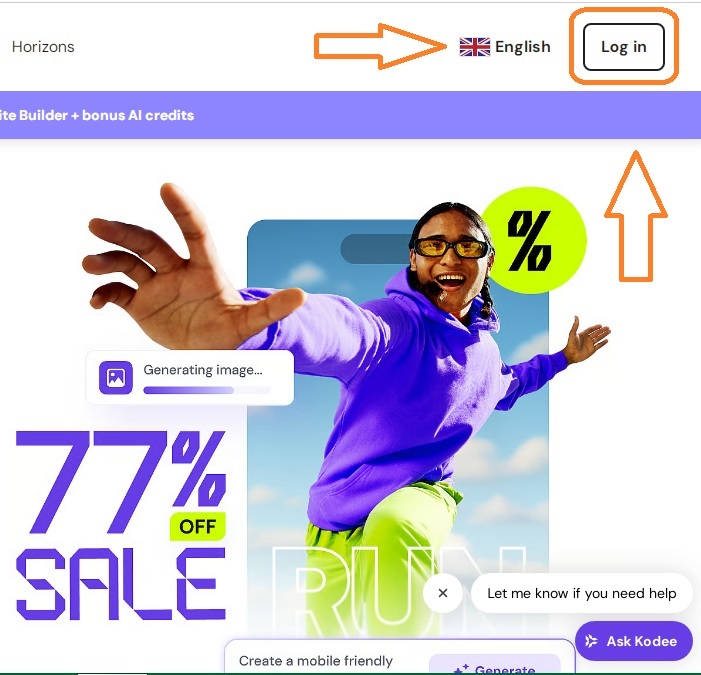
You can register using a Google account, Facebook account or use email and password.
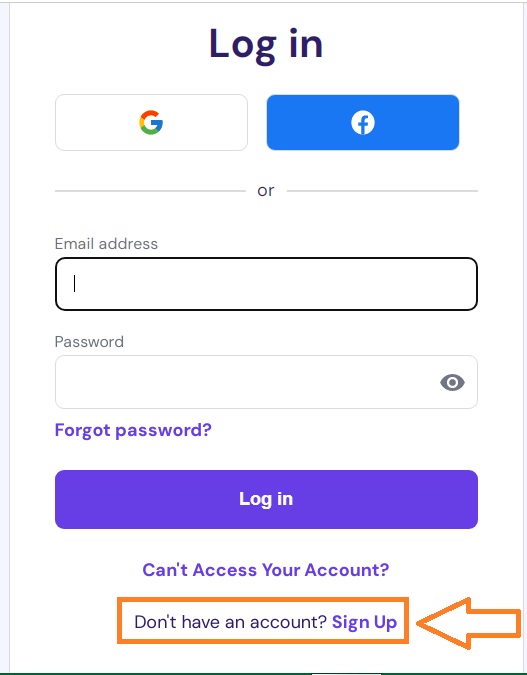
Step two: After registration you will see a suggestion to choose a hosting plan: click on the button — «Explore plans»

Step three: I recommend choosing: Premium Web Hosting, it is ideal for creating a crypto-themed website.
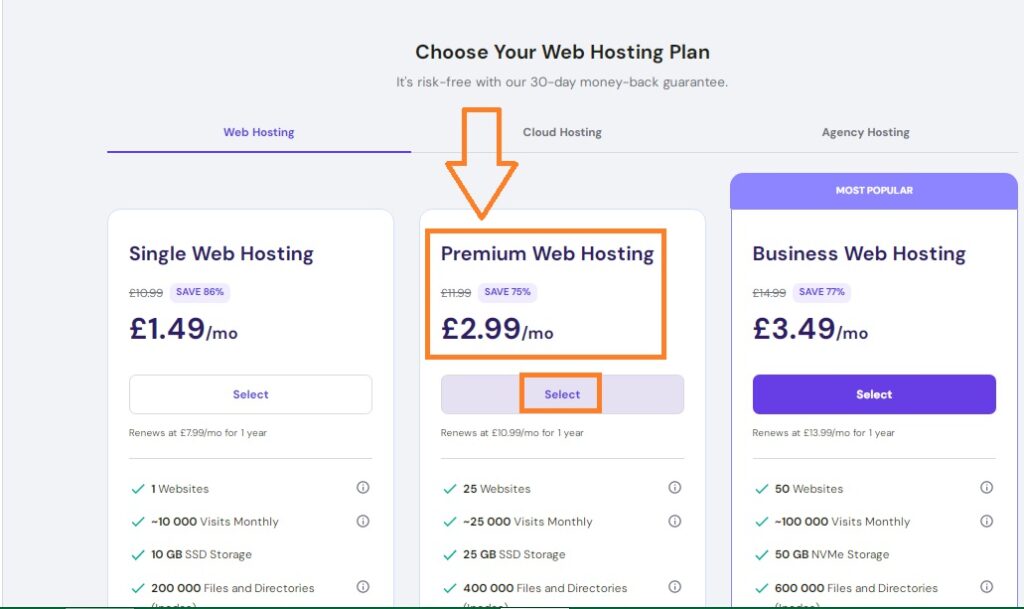
Step four: Select the hosting term: 12 months (saving 71%) you will also receive a domain as a gift and click below on the button «Choose payment method»
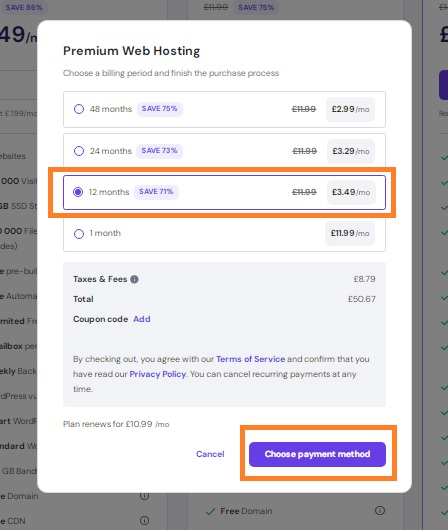
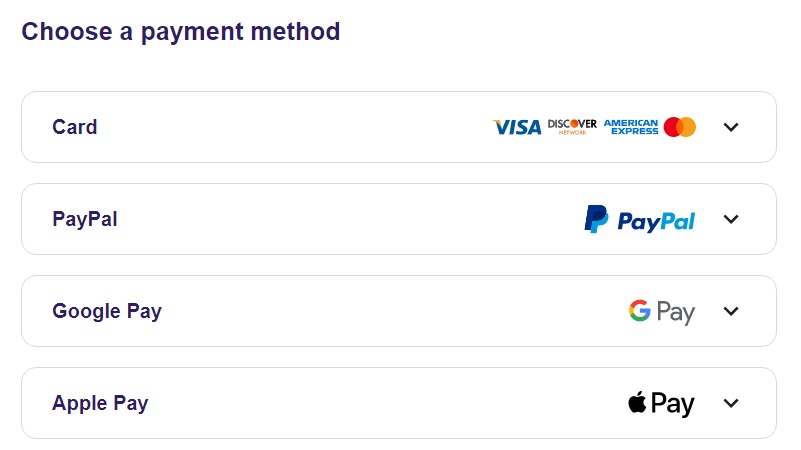
Step five: You can pay for your purchase by card online, PayPal, Google Pay or Apple Pay. After payment, you will be returned to the main page — where the active hosting and its expiration date will be displayed.
🚀 Step 2: Choosing Domain
🔗 How to Claim and Connect Your Free Domain on Hostinger (after purchasing 12+ months of hosting)
📌 Requirement: You must purchase at least 12 months of a hosting plan (e.g., Premium Web Hosting or higher).
✅ Step 1: Buy Hosting
- Go to Hostinger.com
- Choose Premium Web Hosting or a higher plan
- Select a 12-month or longer billing period
- Complete the payment
⸻
✅ Step 2: Claim Your Free Domain 🌐
- After payment, you’ll enter your Hostinger hPanel
- On the dashboard, you’ll see an option to claim your free domain
(If not, go to “Domains” → “Claim Free Domain”) - Enter your desired domain name and click “Search”
- If the domain is available — click “Claim”
📌 Note: You must claim your free domain within 30 days after purchase.
⸻
✅ Step 3: Connect the Domain to Your Site 🔗
- Once claimed, the domain is usually automatically linked to your hosting
- Make sure:
• The domain and hosting are in the same Hostinger account
• Your hosting is active and WordPress (or another CMS) is installed
🔧 In hPanel, go to Websites → select your site → check the Domains tab to confirm the connection
⸻
✅ Step 4 (Optional): DNS Setup
If your domain didn’t link automatically:
- Go to Domains → select your domain
- Open the DNS / Nameservers section
- Set these nameservers:
ns1.dns-parking.com
ns2.dns-parking.com
⸻
All Done! 🎉
You’ve now claimed your free domain and linked it to your hosting.
You can move on to installing WordPress and start building your crypto faucet 🚀
🔧 Step 3: Site setup
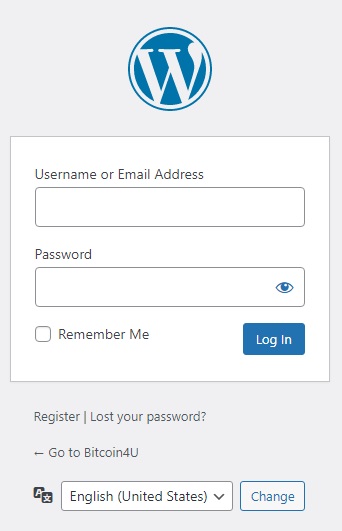
So, after purchasing hosting and registering a domain, you can start setting up your site. To open the admin panel, you need to enter in the browser search bar: https://yoursite.com/wp-admin (replace yoursite.com with your domain)
Step 1: Log in to the WordPress Admin Panel 🔐
Enter your WordPress login and password.
Click “Log In”.
💡 If you just installed WordPress via Hostinger, your login credentials are in your confirmation email or inside your Hostinger dashboard.
Step 2: Install a Lightweight Theme 🎨
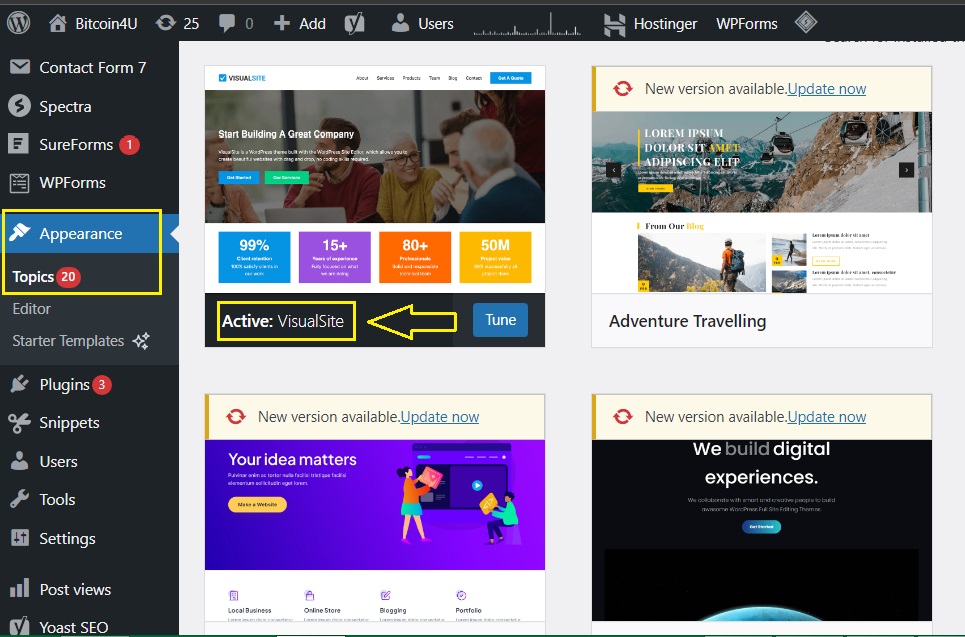
- Go to Appearance → Themes in the left sidebar.
- Click “Add New”.
- Choose a fast, simple theme ( I recommend the theme «VisualSite» ).
- Click “Install”, then “Activate”.
🎯 Important: avoid heavy or bloated themes — sites must load quickly!.
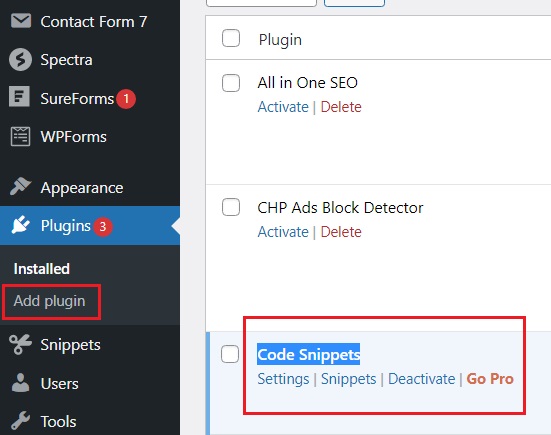
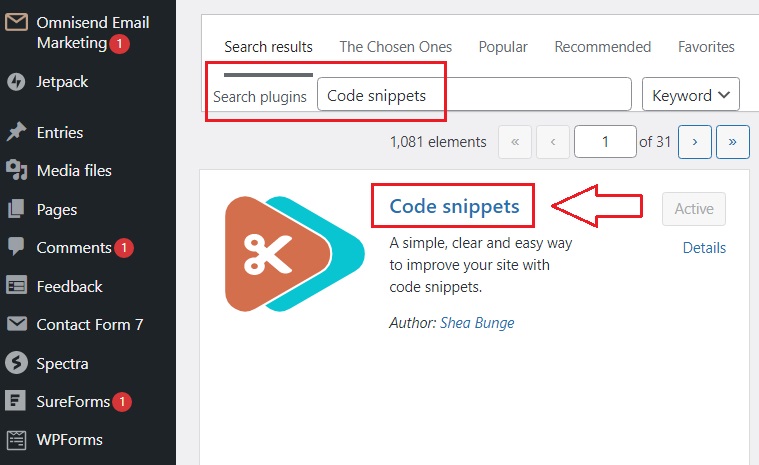
Step 3: Install plugin: «Code snippets»
Find: Plugins → Add plugin → in search enter: «Code snippets», install and activate the plugin.
📌 Requirement: 💡 Don’t Place Your Crypto Faucet on the Homepage — Create a Separate Page Instead!
Your website’s homepage is the face of your project. Instead of placing the faucet there, create a dedicated page for it (for example, /faucet) and use the homepage as a full-featured content hub:
• 📰 Publish news from the world of crypto and finance
• 📈 Post reviews of coins and exchanges
• 🧠 Share useful guides and tips on earning with cryptocurrency
Later, as your site starts receiving stable traffic, you can turn it into a real crypto news portal, attract advertisers, and earn through monetization (AdSense, affiliate links, native ads, etc.).
This approach helps you:
• ✅ Increase trust and authority
• ✅ Improve SEO performance
• ✅ Earn 3–5x more than with the faucet alone.